A top VR platform is only useful if the whole playback chain works. For Brain Dance VR, start with the service’s current information at https://braindancevr.com/, then map the route from content to headset. This simple exercise reveals whether you need a browser, an application, a computer connection or additional hardware before you spend money.
Draw the route before comparing specifications
Write the intended setup as a short sequence. A standalone route might involve a headset, its software environment and the content service. A PC route adds a computer, a supported connection and the software needed to present the experience in the headset. The precise arrangement varies by product, so use the current instructions for the devices involved.
This is particularly helpful when moving from one type of content to another. A headset that works well with an installed game may need a different access method for a web service. Conversely, a successful browser session does not establish that a demanding PC application will run. Each route should be checked on its own terms.
Distinguish the runtime from the content purchase
Software layers can have overlapping names and functions. Valve’s official SteamVR listing, for example, describes software for accessing VR experiences with supported headsets and controllers. Installing a runtime is a separate decision from obtaining access to a particular game’s or media service’s content.
In a comparison, give each dependency its own line. Record the application or browser, headset model, controller requirements and any account you need. This prevents a free component of the setup from making the overall experience appear free, and helps distinguish a missing subscription from a software configuration issue.
Test the connection you plan to keep
Run a representative sample using the actual room and network where you expect to watch. A demonstration on somebody else’s equipment may confirm that a platform works somewhere, but it cannot settle how it behaves in your setup. If your intended route uses a cable, check the documented cable and port requirements instead of judging a connector by appearance alone.
When a problem appears, keep the investigation small. First establish whether the application or browser opens correctly. Then check whether the headset session starts, whether input works and whether content plays. Note the first step that fails. That is more useful than describing everything as “VR does not work.”
Include recovery in your platform comparison
Even a good setup may need to recover from an interrupted session. Find out how to reopen the player, return to the library and restore the intended viewing mode. If the service has account-based access, check how signing in works inside the headset. A process that is manageable once can still become frustrating if it must be repeated every evening.
Help documentation should connect a symptom to a specific action. Prefer instructions that identify the relevant device and software, explain what to check and offer a support route if the problem continues. A compatibility page and a troubleshooting page answer different questions; a useful service should make both easy to find.
Compare the complete cost of a working setup
List the content charge, required software and any missing accessories separately. Include recurring charges alongside one-time costs. If the subscription displays an introductory offer, read what happens at renewal rather than comparing only the first payment. Use the currency and terms shown at checkout for the final decision.
The best result is a short, confirmed path from choosing content to viewing it. A top VR platform should fit that path with understandable requirements and support you can use. Once those basics are established, catalogue preference and optional features become much easier to compare fairly.
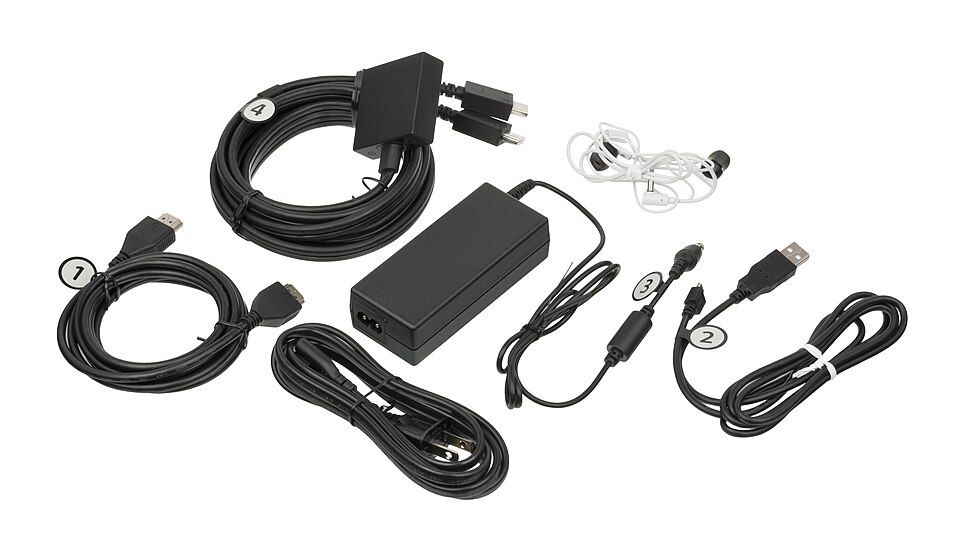
Image: connection cables for the original PlayStation VR. Photo by Evan-Amos, Wikimedia Commons; public domain. Illustrative hardware; requirements vary by device.